Meowdoku Controls & Interface Tips
From basic taps to advanced gestures — learn every control in Meowdoku and optimize your workflow for faster, more accurate solves.
Basic Controls Overview
Meowdoku's control scheme is deliberately simple, but there are nuances that separate casual players from efficient solvers.
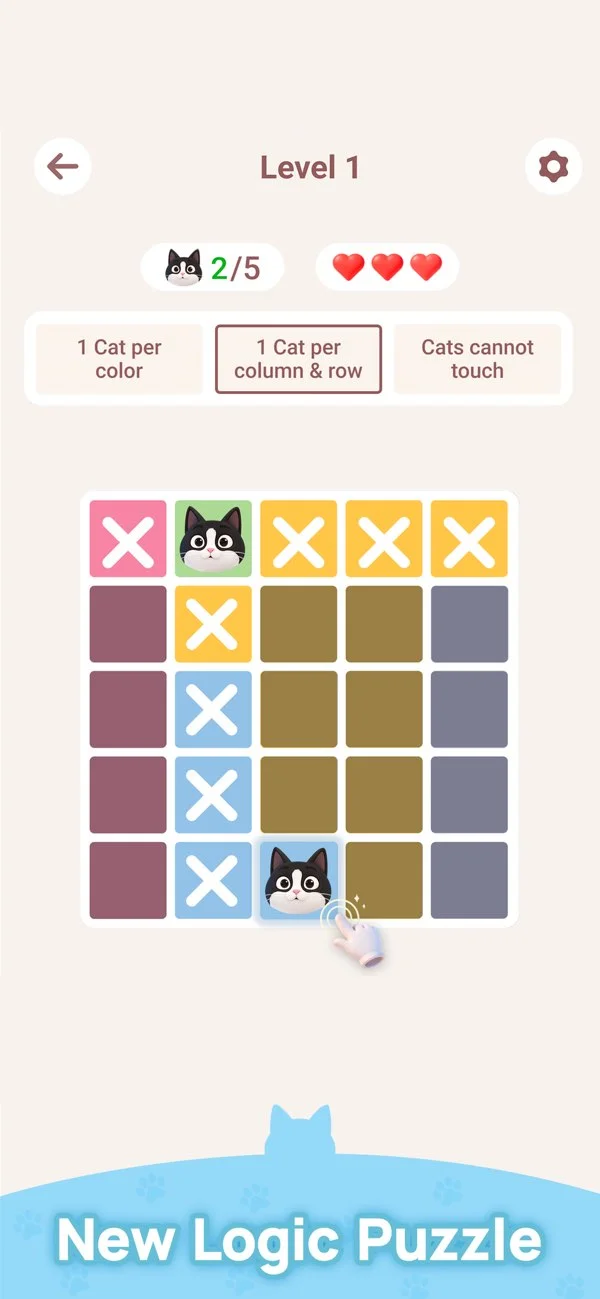 Double-tap to place a cat, long-press to mark cells — simple but powerful controls
- 1Double-Tap to Place a Cat
Double-tap any empty cell to place a cat there. The game provides satisfying haptic feedback and a subtle animation to confirm the placement. This is your primary action — master it until it becomes muscle memory.
- 2Single-Tap to Remove a Cat
Tap once on an already-placed cat to remove it. No penalty for removal — only for incorrect placements. Use this freely when you realize a placement was wrong before confirming.
- 3Long-Press for Marking Mode
Long-press on any empty cell to mark it. Marked cells help you track which positions are impossible (blocked by row, column, or diagonal). This is the most underused feature by beginners.
- 4Undo Button
The undo button (curved arrow icon) reverses your last action — whether it was placing a cat, removing one, or marking a cell. Essential for correcting mistakes before they cost you a heart.
- 5Restart Button
Tap restart to completely reset the current puzzle. All placements and marks are cleared, and your hearts reset to 3. Use this when you're truly stuck or after losing all hearts.
Advanced Control Techniques
Efficient Marking Workflow: After placing a cat, immediately mark all cells in its row, column, and diagonal neighbors. This visual grid of marks makes subsequent deductions much faster. Pro players often mark 3–5 cells per second using a rapid long-press rhythm.
Quick Undo Strategies: The undo button is most powerful when used preemptively. If you're about to test a placement you're only 80% sure about, place it, observe the resulting constraints, then undo if it doesn't lead to a clear deduction chain. This "what-if" exploration is risk-free thanks to undo.
Haptic Feedback Settings: In the settings menu, you can adjust or disable haptic feedback. Many speed solvers prefer strong haptics for confirmation feedback, while relaxation-focused players often reduce or disable it for a quieter experience.
💡 Pro Tip: Customize your control feel in Settings. Adjust haptic intensity, sound effects, and animation speed to match your playstyle. A comfortable interface is a faster interface.
Interface Tour
Understanding every element of the Meowdoku interface helps you navigate faster:
- Hearts Display: Top of screen — shows remaining lives (3 hearts). Each lost heart is clearly indicated. Glance here before risky placements.
- Puzzle Title/Number: Helps you track which puzzle you're on and reference it in discussions with other players.
- Settings Menu (Gear Icon): Access sound, haptic, and theme options. The dark/light theme toggle is particularly useful for different lighting conditions.
- Daily Puzzle Badge: A special indicator on the main menu showing whether you've completed today's Daily Puzzle — great for maintaining your streak.
More Meowdoku Guides
Explore more articles to level up your Meowdoku skills: